Playback
Controls
There is a variety of keyboard shortcuts. Click the menu button in the top right corner (Esc) or hit F1 to see a complete list.
- Next frame: Right, PageDown, n, Space
- Previous frame: Left, PageUp, p
- Video: Adjust speed by Numpad +/-
- Toggle file info: f
- Toggle HUD map: m
Data saver
On a metered or slow connection, downloading full-size photos is the whole cost of a presentation. Alt+B (or the 🐢 button in the menu) turns the data saver on: photos are no longer downloaded in full. Where the presentation provides thumbnails, the thumbnail simply becomes the picture – a whole album then costs a few megabytes instead of tens of gigabytes. Where there is no thumbnail, nothing is loaded at all and the frame shows a dashed placeholder until you ask for it with Alt+L, which downloads that one frame in full and leaves the mode on.
In the mode the read-ahead also shrinks – 5 frames forward and 2 back instead of 50/20 – because even thumbnails are fifty requests on a link you have just asked to go easy on.
It switches itself on when the browser reports a metered connection, the user's own "Save data"
preference, or a 2G-class link (navigator.connection, Chromium only). Toggling it by hand – or presetting it
with save-data in the URL hash – wins from then on, so a mode you turned off
does not switch itself back on.
A 🐢 badge in the bottom-left corner shows the mode is on and whether this frame is standing in for something. Click it (or press Shift+Alt+B) for the total:
214 full-size file(s) not downloaded, saving ≈ 1.8 GB; 6.4 MB of thumbnails loaded instead (estimated from the 3 file(s) that were loaded in full).
The megabytes actually transferred are measured exactly. The ones not transferred cannot be – the
app never asks the server how big a file it is not downloading, which is rather the point – so they
are estimated from the average size of the files that did get downloaded in this session, and the
number is marked ≈. Until at least one file has been downloaded in full there is nothing to
estimate from, and only the file count is reported.
Start
The <menu> is displayed before the presentation starts, unless the <main> has the sli-start attribute.
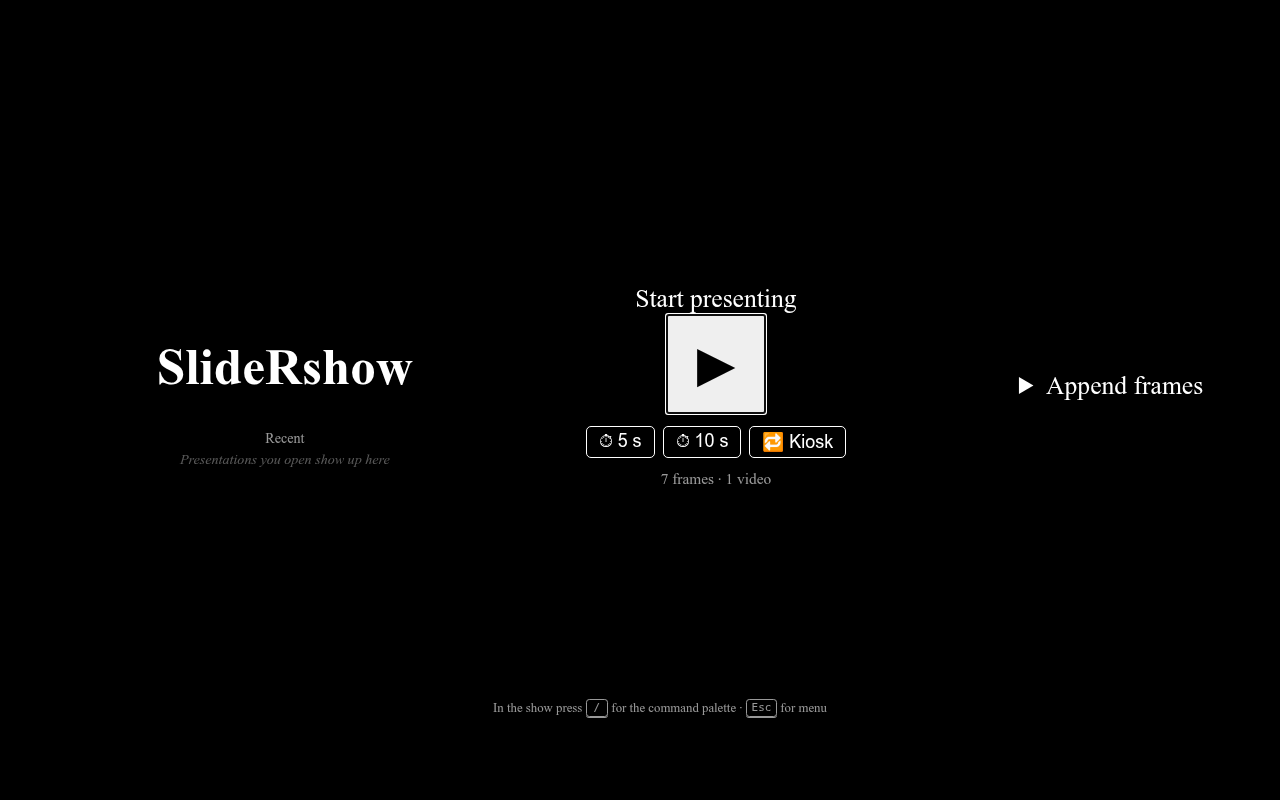
When a presentation is loaded, the splash shows a short summary of what is loaded (frames / videos / sections) and, next to the big ▶ Start button, quick play-mode buttons:
- ⏱ 5 s / ⏱ 10 s – start straight into auto-forward with that per-frame duration.
- 🔁 Kiosk – auto-forward and loop the whole presentation (back to the first frame at the end) – exhibition / kiosk mode.
The last few presentations you opened are listed under "Recent" so you can jump back to them.
URL-hash presets
Most viewing options can also be preset from the URL hash so you can hand out a ready-to-run link, e.g. presentation.html#1?duration=5&loop-presentation&progress&start starts at frame 1, auto-forwards every 5 s, loops at the end, shows the countdown bar, and skips the splash menu.
Available parameters include duration=<seconds> (numeric), loop-presentation, progress, thumbnails, grid, properties, no-steps, save-data, editing, tagging, tag-filter=<id> (may repeat), tag-names=<pipe-separated>, aux=<pane,pane,pane,pane> and aux-size=<n,n,n> (see auxiliary window), print-pdf (see exporting to PDF), start. Boolean flags like loop-presentation may omit a value; tag-filter and other boolean flags can appear multiple times (for tag-filter). start skips the splash menu and begins playback immediately.